
After importing legacy data from a previous system, individual customers can end up with a duplicate account, leaving the collected balance on the "old" card. The Reconcile Balance dialog in the bessa Manager lets you move points or stamps onto the customer's real app account in a few clicks — or credit a balance directly.
Why do duplicate customer cards appear?
When you import legacy data, bessa carries over the customer master data including the stored email address. As soon as a customer then signs in to the bessa WhiteLabel app, their customer card is matched via that email address.
For Apple users who register with "Sign in with Apple" and keep Hide My Email (Apple Mail relay) enabled, Apple generates a random relay address (…@privaterelay.appleid.com). It differs from the imported email address. As a result:
-
The app does not recognise the customer as an existing record and creates a new customer card (the real app account).
-
The imported balance stays on the old card (with the original email address).
This almost exclusively affects Apple users with Mail relay enabled. For Android users — and Apple users who share their real address — automatic matching usually works correctly.
The "Reconcile Balance" dialog
In the bessa Manager, open Customer Loyalty → Customer Cards and click Reconcile Balance in the top right. The dialog offers two paths:
-
Transfer Points — moves the balance from an old/imported source card onto the real app account. This is the right path for the classic duplicate account after an import.
-
Credit Points — credits a balance to a customer directly, without a source card. Handy when no imported card exists (any more) and you want to add a balance manually.
In both cases the recipient can only be a registered app user. The customer must have signed in to the WhiteLabel app at least once before their real account can be selected as the target.
Transfer Points — step by step
The standard case after an import: move the balance from the old card onto the real app account.
-
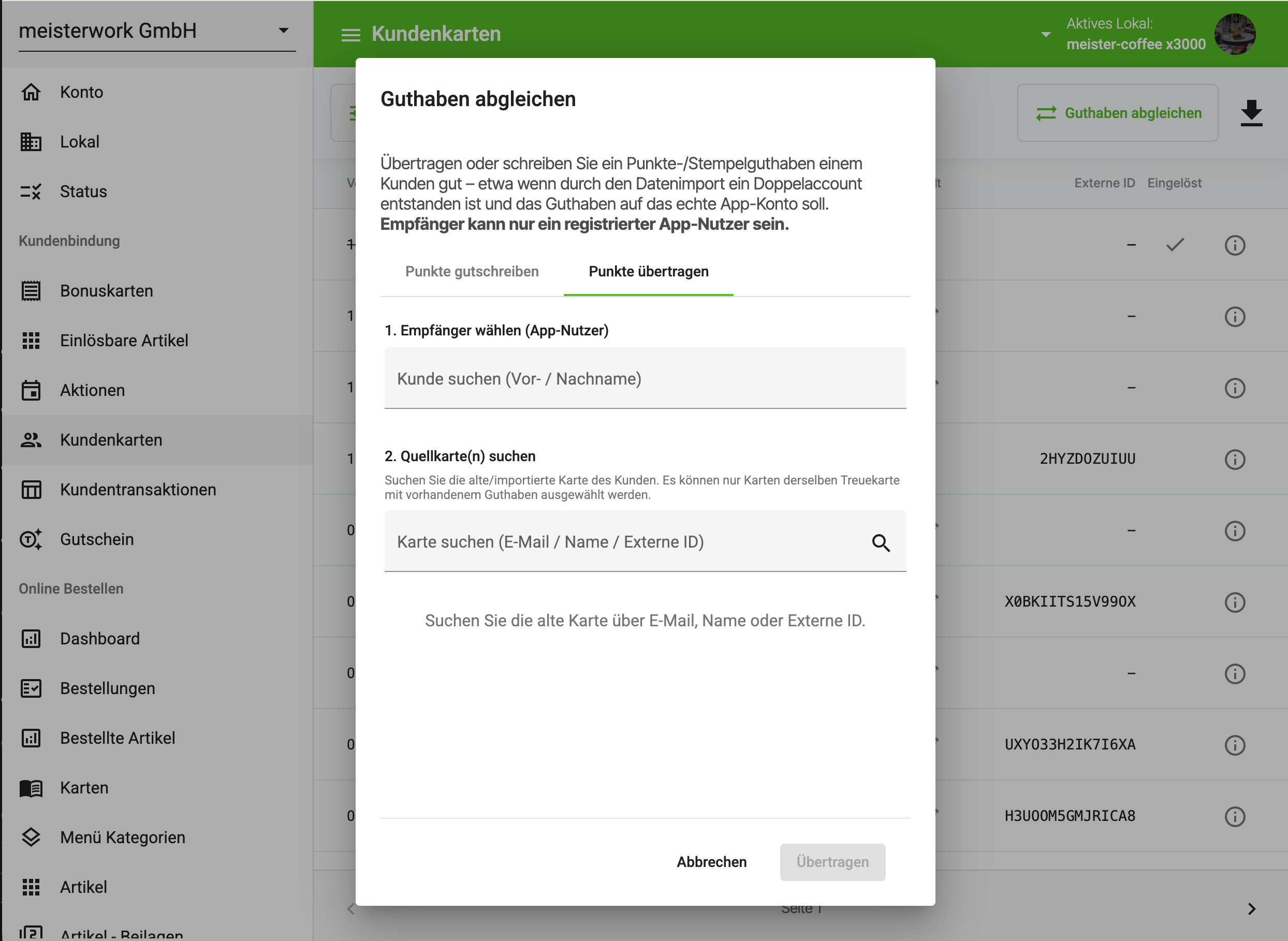
Open Customer Loyalty → Customer Cards → Reconcile Balance and switch to the Transfer Points tab.
-
Select recipient (app user): search for the customer's real app account by first or last name and select it.
-
Find source card(s): search for the old/imported card by email, name, or External ID. Only cards of the same loyalty card type with an existing balance can be selected.
-
Click Transfer. The balance moves onto the app account, and the source card is emptied accordingly.
The External ID (for example 2HYZDOZUIUU) is the fastest way to locate an imported card when the name occurs more than once or the email address is unknown.
Credit Points — step by step
When no source card is available and you want to add a balance to a customer directly:
-
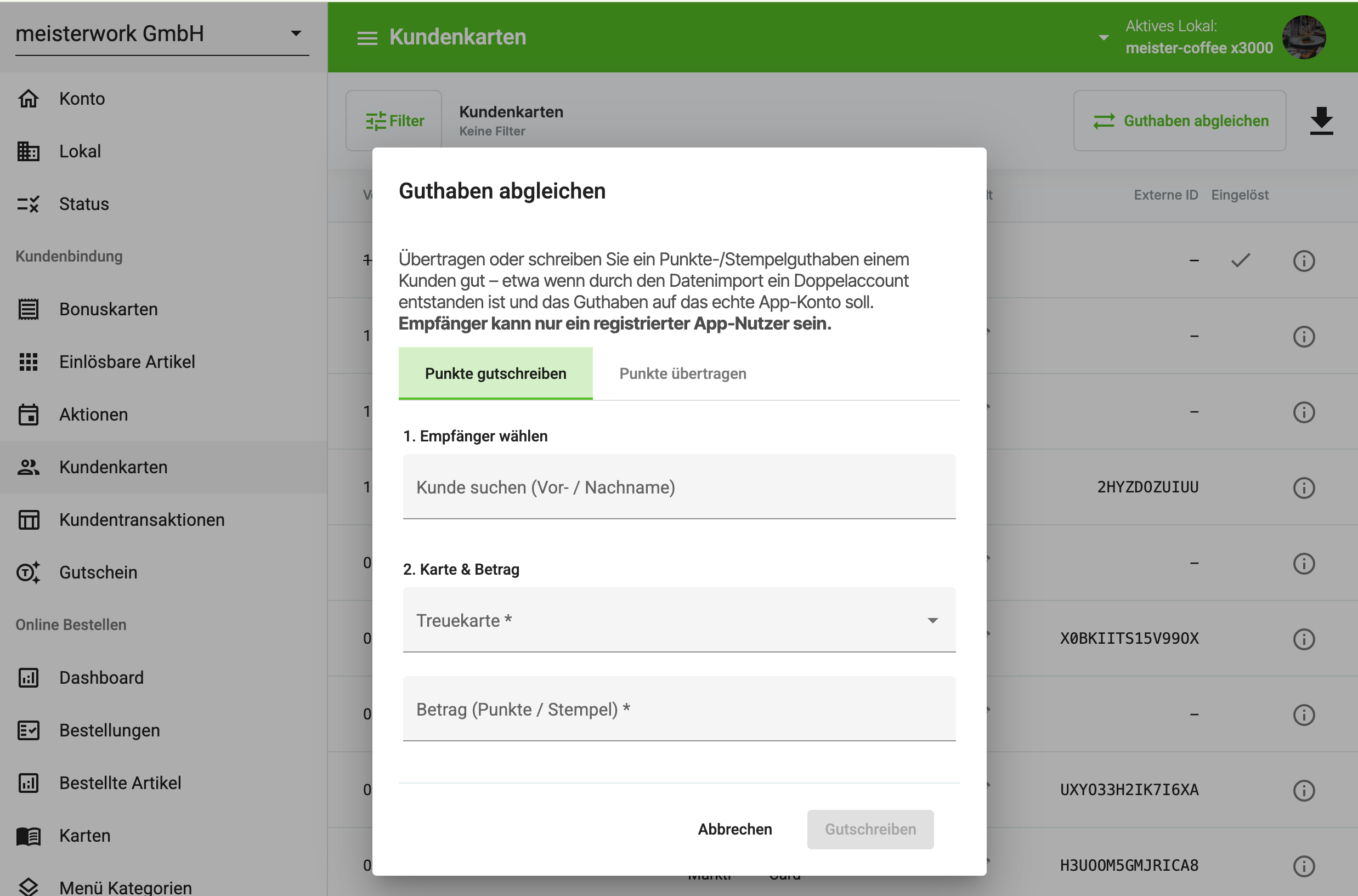
Open the Reconcile Balance dialog and stay on the Credit Points tab.
-
Select recipient: search for the app user by first or last name.
-
Card & amount: choose the loyalty card and enter the amount (points / stamps).
-
Click Credit.
How to avoid the extra work
-
Brief customers in advance: after an import, advise your guests to sign in with their real email address where possible, or to turn off Hide My Email when signing in with Apple.
-
Process in batches: review the customer card list together in the first days after an import — this surfaces duplicate accounts early and lets you reconcile several cases at once.
Frequently asked questions
When do I use "Transfer", and when "Credit"? Transfer moves an existing balance from a specific source card onto the app account — the intended path for a duplicate account after an import. Credit adds an amount without a source card, for example when the old card no longer exists.
Why can't I select a recipient? The recipient can only be a registered app user. Ask the customer to sign in to the WhiteLabel app once — their account then appears in the recipient search.
The old card doesn't show up under "Find source card". Only cards of the same loyalty card type with an existing balance can be selected. Check that you picked the same card type as the recipient and that the source card actually still carries a balance. You can also search by External ID.
Are points lost if I do nothing? No. The balance stays on the old card. The customer only sees their new account in the app, however — and therefore a seemingly reset balance — until you reconcile it.
Troubleshooting
I only find one card for the customer. Then automatic matching worked — no reconciliation is needed. Also try alternative spellings of the name in the search field.
The "Transfer" / "Credit" button stays greyed out. Not all required fields (marked with *) are filled yet — recipient and source card, or recipient, loyalty card, and amount. Once everything is complete, the button becomes active.
The new balance doesn't appear in the app right away. The app syncs data at short intervals. Ask the customer to close and reopen the app.
Related topics
-
Bonus Cards — set up card types and points logic
-
Term: Customer Card — how the card types differ