
Print labels from the bessa Manager
In the Manager, you can export labels for items and orders and then print them.
For printing to work correctly, the following prerequisites must be met and steps completed:
1. Install the Bixolon printer
Before you can print labels, the matching Bixolon printer driver must first be installed on your Windows PC.
-
Read the model number
Check your Bixolon printer for its model number (e.g. SLP-DX420). -
Download the driver
Open the Bixolon website:
👉 https://bixoloneu.com/downloads/?lang=en -
Pick the right driver
Enter the model number or select the matching model from the list.
Download the matching Windows driver. -
Install the driver
Run the downloaded file and follow the installer's instructions. -
Add the printer to WindowsOpen the Start menu and click Settings.Go to Devices → Printers & scanners.Click Add a printer or scanner.Wait until your Bixolon printer appears in the list and select it.
2. Configure the print format for labels
For labels to print correctly, the right label format must be configured in the printer driver.
-
Check the label size
Look at the label packaging for the format (width × height) of the labels. -
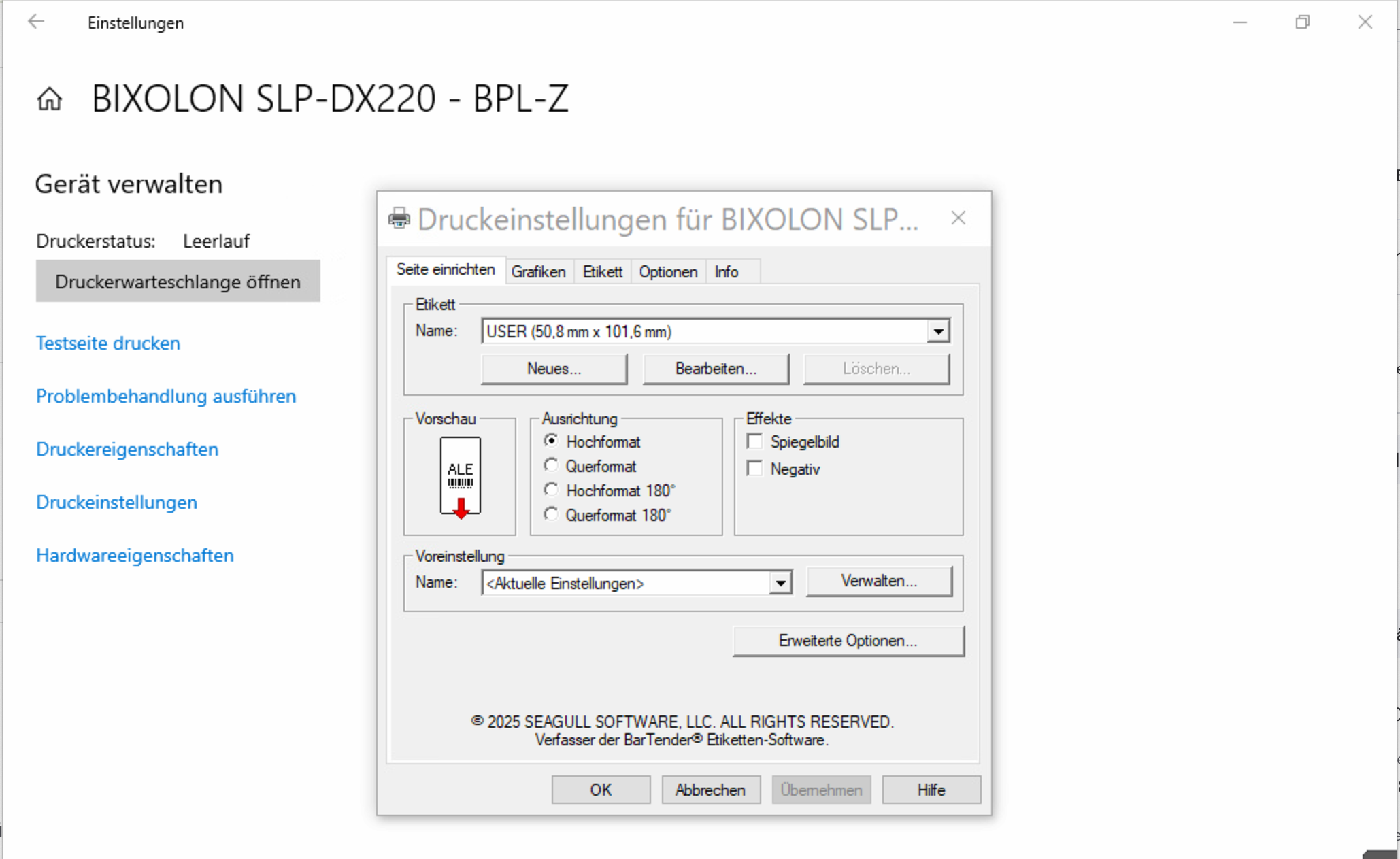
Open the print settingsOpen Settings → Devices → Printers & scanners again.Click your Bixolon printer.Choose Manage → Printing preferences (or Printing preferences directly, depending on your Windows version).
-
Create a new label format
In the settings dialog, click New or New format.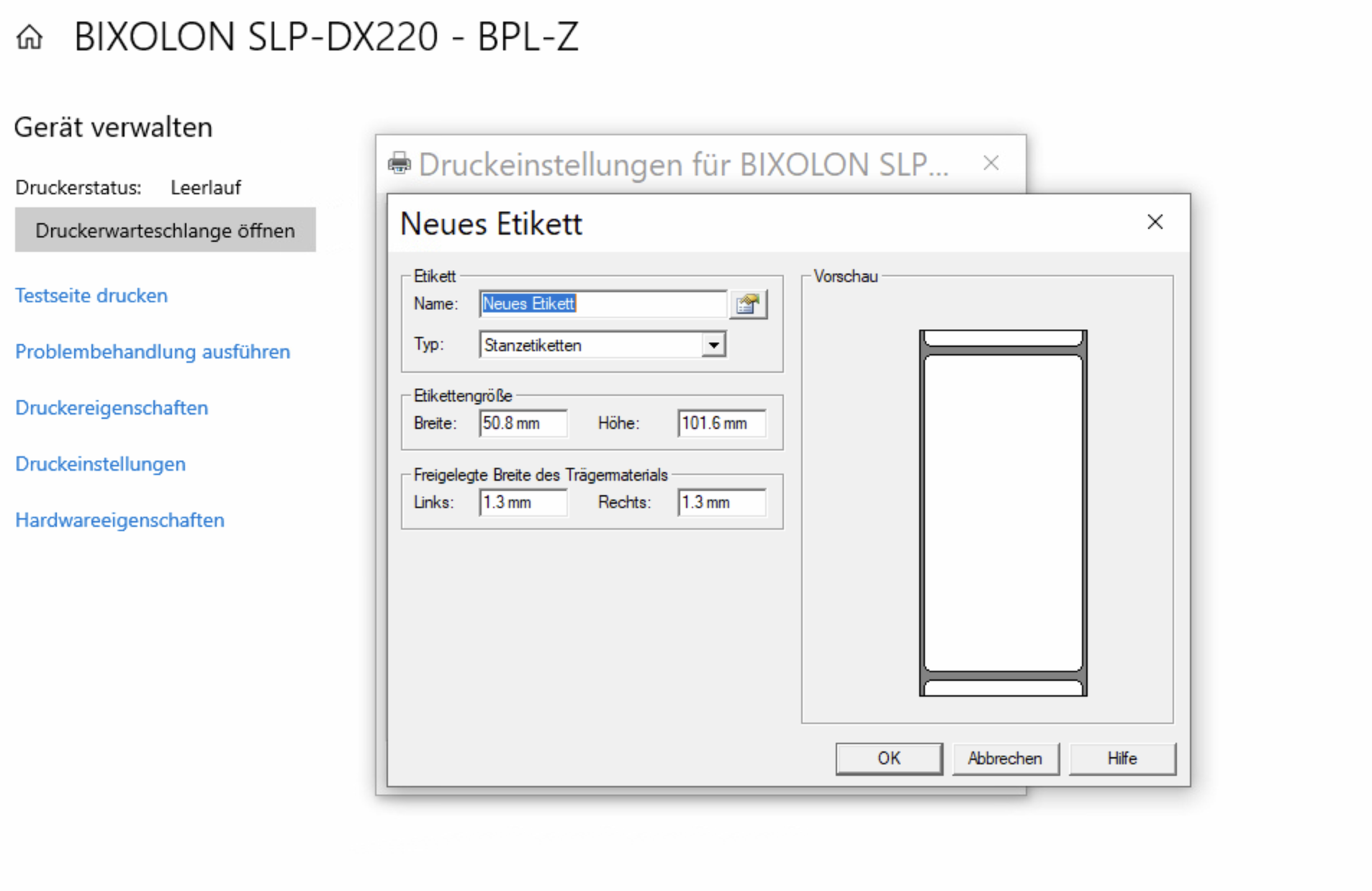
-
Enter the label size
Enter the dimensions (width and height) you read off the packaging earlier.
Save the new label format. -
Select the print format
Now select the newly created format as the default for your label printing.
✅ Done!
After these steps your Bixolon printer is correctly set up. You can now export labels for items and orders directly from the bessa Manager and print them without issues.
In the bessa Manager, choose the export — it will be downloaded. Open the file, then select the label printer and print: the labels will be printed.