
Welcome to the documentation of the bessa modules. This document is updated regularly as we add new features. The sections below describe each of the modules we offer.
Glossary
To avoid ambiguity while reading this documentation, here is a brief glossary that establishes the context.
-
Partner: a partner is a reseller who distributes bessa and supports customers with using and implementing the bessa system. The partner acts as the customer's point of contact and provides help with questions, training, and technical support.
-
Customer: a customer is a person or company that purchases and operates the bessa system — most commonly a restaurant or similar establishment. The customer works closely with the partner to set up, customise, and use the bessa system to improve their business.
-
User: a user is a person who uses the bessa system the customer has bought, in a venue or restaurant. A user can be a guest who uses the bessa ordering system to place orders or pay, or one of the customer's staff who uses the bessa system to manage orders, customer profiles, or other relevant tasks.
1. Customer Loyalty module
We offer the customer promotion and loyalty cards in their white-label app as well as in our bessa app. With these, customers can be tied to the business and motivated through promotion cards.
Customer loyalty also works without a white-label app or ordering module, but in that case not all of the card types listed here can be used. The following card types are available:
-
Loyalty pass
-
Customer cards
-
Promotion cards
1.1 Loyalty pass
Loyalty passes (also known as bonus cards) come in two types.
Point card
Point cards are a type of loyalty bonus card that lets users collect points and redeem them for items or pre-defined rewards.
When no white-label app is available, the entire flow can also be implemented via a customer card (a physical card).
Here is a more detailed explanation of how point cards work:
-
Collecting points: every time a customer places an order through the bessa system or the customer's POS system, points are calculated based on the order's monetary value. The exact number of points the customer receives is configurable. The points don't have to be called "points" — they can have any name, e.g. coins, bananas, gold pieces, etc.
-
Crediting points: points are credited to the user's customer account, either automatically or after the order is confirmed by the venue's staff. The customer can view the current point balance per user in bessa Manager. The user can view their balance via the white-label app or the bessa app.
-
Redeeming points: once the user has collected a certain number of points, they can redeem them for items or pre-defined rewards. The available redemption options can also be defined by the customer.
-
Redemption options: redemption can take many forms — free goods or services, a discount on the order total, or a choice from a list of pre-defined rewards. Specific options vary based on what the customer configures.
-
Managing point cards: users have access to their point cards and can view their balance, redeemed points, and available redemption options. Point card management runs through either the white-label app or the bessa app, depending on what the customer uses.
Stamp card
Stamp cards are a type of loyalty bonus card that lets users collect stamps and redeem them for pre-defined items.
When no white-label app is available, the entire flow can also be handled via a physical customer card.
Here is a more detailed explanation of how stamp cards work:
-
Collecting stamps: every time a customer places an order through the bessa system or the customer's POS system, stamps are calculated based on the number of items qualifying. The exact number of items the user needs is configurable.
-
Crediting stamps: stamps are credited to the user's customer account, either automatically or after the order is confirmed by venue staff. The customer can view the current stamp balance per user in bessa Manager. The user can view their balance via the white-label app or the bessa app.
-
Redeeming stamps: once the user has collected a certain number of stamps, they can redeem them for items.
-
Redemption options: stamp redemption can happen at the Sales Point or in the white-label app. Specific options vary based on what the customer configures.
-
Managing stamp cards: users have access to their stamp cards and can view collected stamps and available redemption options. Stamp card management runs through either the white-label app or the customer card, depending on what the customer uses.
Point and stamp cards give customers an incentive to keep ordering through the bessa system in order to collect points or stamps and benefit from the associated rewards. This drives customer loyalty and motivates customers to keep using the bessa system to place orders with the business — which in turn increases the customer's revenue.
1.2 Customer cards
Customer cards can be used in digital form (in the white-label app) and in physical form (plastic card). The customer card uniquely identifies a customer. With a white-label system this can be omitted, but if no white-label app is in use it is mandatory so the customer can collect and redeem rewards at the Sales Point.
1.3 Promotion cards
Promotion cards are a tool for tying users more closely to the customer through one-time or recurring configurable special bonuses. Promotion cards only work together with the white-label app.
The customer can create promotion cards and customise them individually. They can specify whether it's a one-time or recurring promotion. Examples: "Free dessert when downloading the white-label app" or "10% off the next order".
Redeeming promotion cards: when users have a promotion card, they can redeem it on their next visit or order. The exact redemption conditions — validity period or specific restrictions — are set by the customer when creating the promotion card.
The customer can manage promotion cards and track their use. This includes the ability to check whether they have already been redeemed or are still valid. Management is done in bessa Manager.
2. App Self Ordering
Activates ordering in your white-label app or in the bessa app. The "App Self Order" module supports several order types:
-
In-house ordering: customers scan a QR code directly at the table, then order through the app inside the restaurant and pay immediately.
-
Pickup ordering: customers can order from home and pick up the food at an agreed time.
-
Delivery ordering: customers can order from home and have the food delivered directly to their door.
2.1 Settings
This module is controlled via the following menu section in Manager. Click the link to learn more.
-
Online Ordering — all ordering settings in one menu section.
-
Signage Display — App Self Ordering can be extended with a signage display (an order monitor like the ones at McDonald's).
3. Kiosk Self Ordering
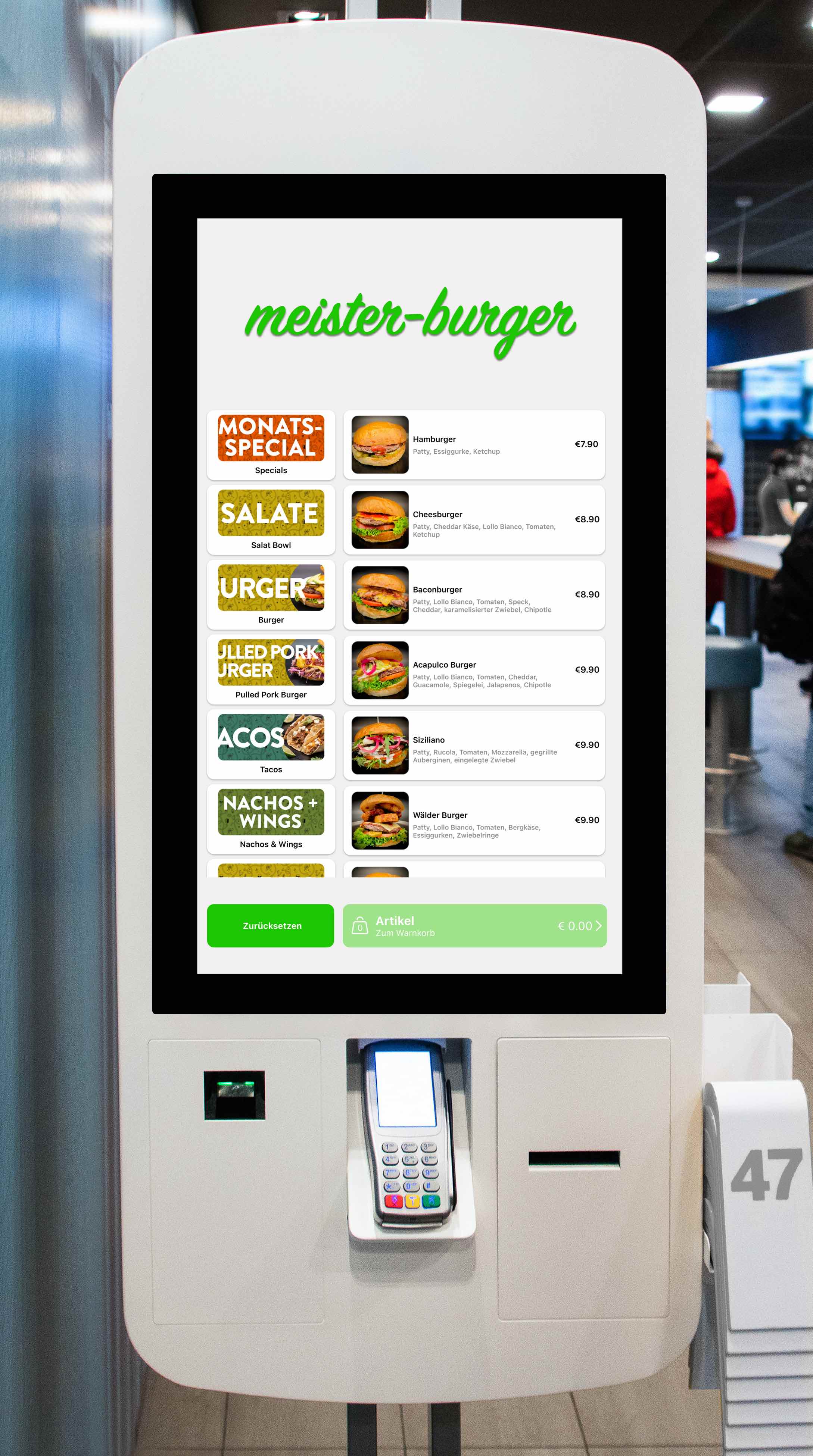
You need this module if you want to offer ordering through a kiosk. The bessa team builds a dedicated app for the kiosk that is then installed on the kiosk hardware.
3.1 Settings
This module is controlled via the following menu section in Manager. Click the link to learn more.
-
Online Ordering — all ordering settings in one menu section.
-
Signage Display — App Self Ordering can be extended with a signage display (an order monitor like the ones at McDonald's).
You can find the documentation on operating and configuring a kiosk here: bessa Kiosk app documentation.
4. Tablet Self Ordering
This module lets restaurant guests place orders at the table using a tablet. A tablet app is built for the customer and must be installed on every table tablet.
You can have one tablet per table, or only a few tablets that are brought to the guest's table. The customer decides which approach to use.
These tablets run a bessa ordering app whose colours and design the customer can choose. Menu management is handled in bessa Manager. The customer or partner uses bessa Manager to build the desired menu for the restaurant or venue. This includes capturing dishes, food, drinks, and other relevant offerings as well as their details — prices, descriptions, and options.
The user then orders via the tablet. Orders can either be shown on a pickup display so the guest can collect them, or sent classically to a kitchen monitor.
4.1 Settings
This module is controlled via the following menu section in Manager. Click the link to learn more.
-
Online Ordering — all ordering settings in one menu section.
-
Signage Display — Kiosk Self Ordering can be extended with a signage display (an order monitor like the ones at McDonald's).
The documentation describes how to configure the tablets.
5. Web Self Ordering
This module enables the customer to run their own webshop. With this module we generate a webshop for the customer. Example webshop: https://webstg.bessa.app/no-cashbox
-
In-house ordering: customers scan a QR code directly at the table, then order through the app inside the restaurant and pay immediately.
-
Pickup ordering: customers can order from home and pick up the food at an agreed time.
-
Delivery ordering: customers can order from home and have the food delivered directly to their door.
Menu management in bessa Manager. The customer or partner uses bessa Manager to build the desired menu for the restaurant or venue. This includes capturing dishes, food, drinks, and other relevant offerings as well as their details — prices, descriptions, and options.
The webshop can also run together with a white-label app, so the customer can order without having to download an app.
This module is controlled via the following menu sections in Manager.
-
Online Ordering — all ordering settings in one menu section.
-
Web Shop — all webshop settings in one menu section.
-
Signage Display — Kiosk Self Ordering can be extended with a signage display (an order monitor like the ones at McDonald's).
6. Schank Self Ordering
You need this module if you want to sell drinks via an automated dispenser system. The guest can self-order drinks and pour them themselves. The video below shows how this can work.
This module is controlled via the following menu section in Manager.
-
Online Ordering — all ordering settings in one menu section.
7. External delivery services
You need this module if you want all orders from third-party services to be booked into your Sales Point. We support the following services:
-
Mjam/Lieferheld — Foodora (Delivery Hero Group) — onboarding
-
Lieferando/Takeaway Group — Lieferando/Takeaway Group onboarding
-
Wolt — Wolt onboarding
-
Uber — Uber Eats onboarding
All of these providers' servers communicate with our third-party server: https://plugin.meisterwork.at
The points below briefly outline the data we need to connect a service.
7.1 Mjam / Foodora / Lieferheld
To connect Mjam, we need the following data:
-
Mjam username — must be requested from Foodora/Lieferheld (field: service user)
-
Mjam password — must be requested from Foodora/Lieferheld (field: service password)
-
Mjam plugin key — a password/secret used by Foodora to sign our orders to prevent abuse. Generated by the bessa team. (field: service venue API key, comes from bessa)
Menu and items
Items are either pushed directly through the Mjam/Foodora interface — currently not possible.
They can also be uploaded via Excel. The Excel file is then sent to the bessa team. We fill in the remote IDs and the finished Excel is handed over to Mjam / Foodora, which then loads it into the system.
Fallback items are needed because there are situations where a new menu cannot be loaded by Mjam / Foodora immediately. The fallback item is an open-price item that the Sales Point uses to book orders containing unknown items.
8. White-Label App
You need this module if you want your own white-label app. The white-label app is designed according to the customer's wishes. It works together with the following modules and can be used as a communication platform with your customers:
-
Customer Loyalty
-
App Ordering (enables ordering inside the app)
-
Voucher system
You can communicate with your customers through the app via push notifications. Push notifications let you send targeted messages to your app users to inform them about news, offers, promotions, or other important information. You can take the following points into account:
Capabilities of push notifications:
-
Send targeted messages to your app users.
-
Inform them about special offers, discounts, events, or other relevant information.
-
Increase customer loyalty by offering personalised content.
-
Reach customers in real time to communicate time-critical information.
The section Your own app explains exactly how this works.
8.1 Design
The following document explains how to redesign the app.
8.2 Examples
A few examples:
-
https://apps.apple.com/at/app/the-pub-graz/id1515491437 — iOS version
-
https://play.google.com/store/apps/details?id=at.meisterwork.loyalty.thepub&hl=de_AT — Android version
-
https://apps.apple.com/at/app/da-capo/id1659811941 — iOS version
-
https://play.google.com/store/apps/details?id=at.meisterwork.loyalty.dpizza&hl=de_AT — Android version
9. KPI app
You need this module if you want to use the bessa KPI app (Kennzahlen). This app lets you see what's happening in your restaurant in real time. The KPI app gives you an overview of your operation. It is connected directly to the Sales Point and provides real-time information about your business.
-
https://apps.apple.com/at/app/gastro-kennzahlen/id1486312589 — iOS version
-
https://play.google.com/store/apps/details?id=at.meisterwork.reporter&hl=de_AT — Android version
This app currently only works with the Gastro Touch Sales Point. The technical documentation covers how to connect the Sales Point to bessa.
For this module, the following information must be entered in bessa Manager:
-
The fiscalisation ID or Sales Point ID
-
Path of the Gastro Touch Winkasse installation
-
IP address of the Sales Point
-
Port 1090
10. Voucher/Coupon Card System
The bessa system also supports vouchers, which can be purchased in the white-label app or via a customer-designed web interface. These vouchers can then be redeemed at the customer Sales Point or in the bessa ordering modules.
The customer can sell vouchers in three ways:
-
In the white-label app — the user can buy a voucher directly in the app.
-
On the web — the user can also buy a voucher directly on the web.
-
At the Sales Point — a guest can buy a voucher at the Sales Point in the restaurant.
Voucher management. In bessa Manager, the customer can see how many vouchers were sold and redeemed. The user can view their vouchers in the white-label app. The customer can also view the voucher transaction history in Manager.
The customer can also create vouchers in Manager for their guests, who can then use them.
Delivery of customer vouchers
Vouchers can be delivered as a designable PDF, either as a printout or by email. Physical voucher cards are also supported.
Redeeming customer vouchers
Vouchers can be scanned and redeemed at the Sales Point. They can also be redeemed via the webshop or the white-label app.
bessa Manager documentation for configuring vouchers.