
To get started, the customer needs to create a PayPal Business account. If you already have one, you do not need to do this. Once you have completed it, please follow the instructions in this document. If you experience problems, please contact us and we can go through this document with you.
Set Up PayPal Payments
-
Open https://paypal.com
-
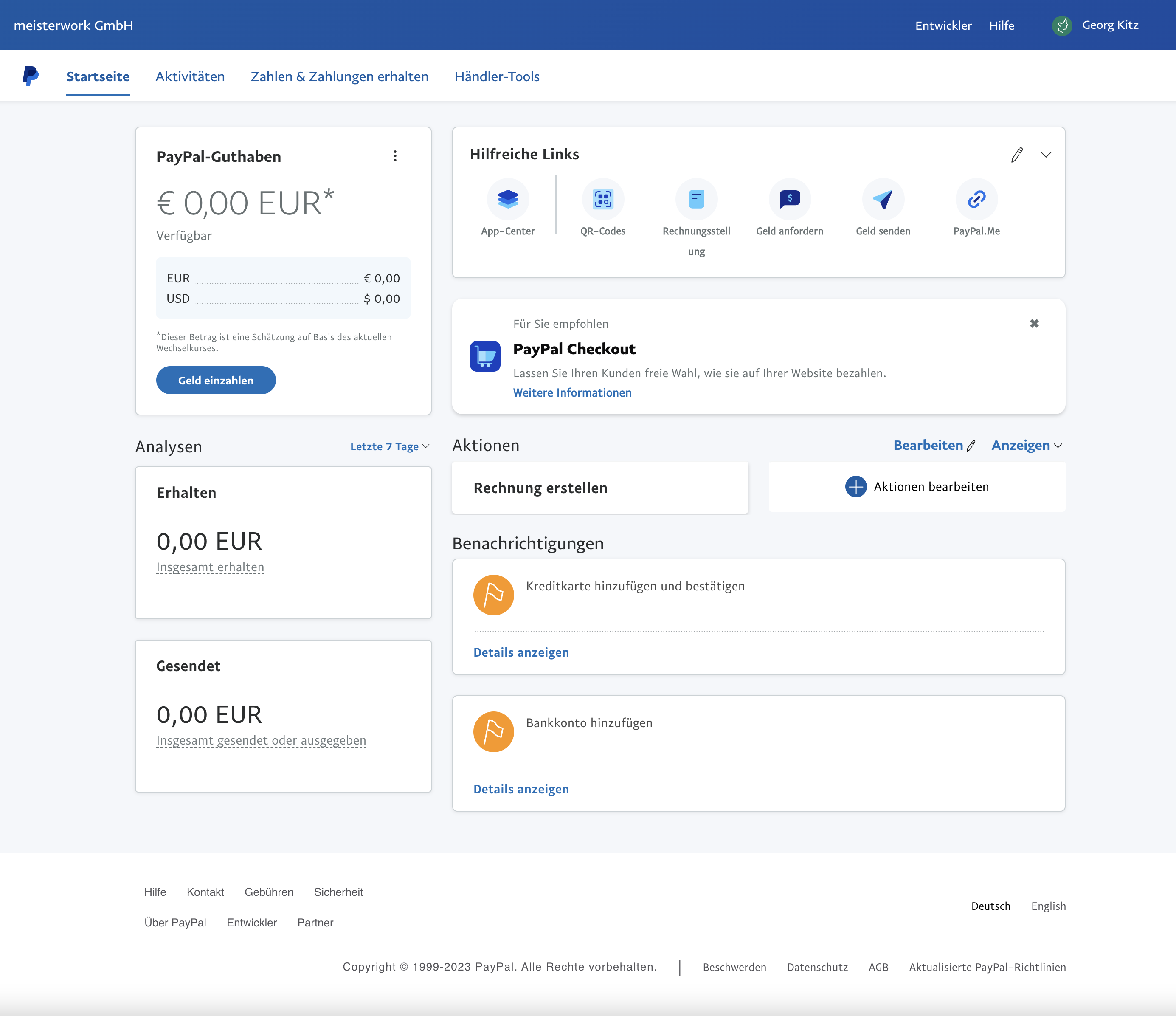
Log in with your credentials; you will then see the PayPal Business Dashboard
-
-
-
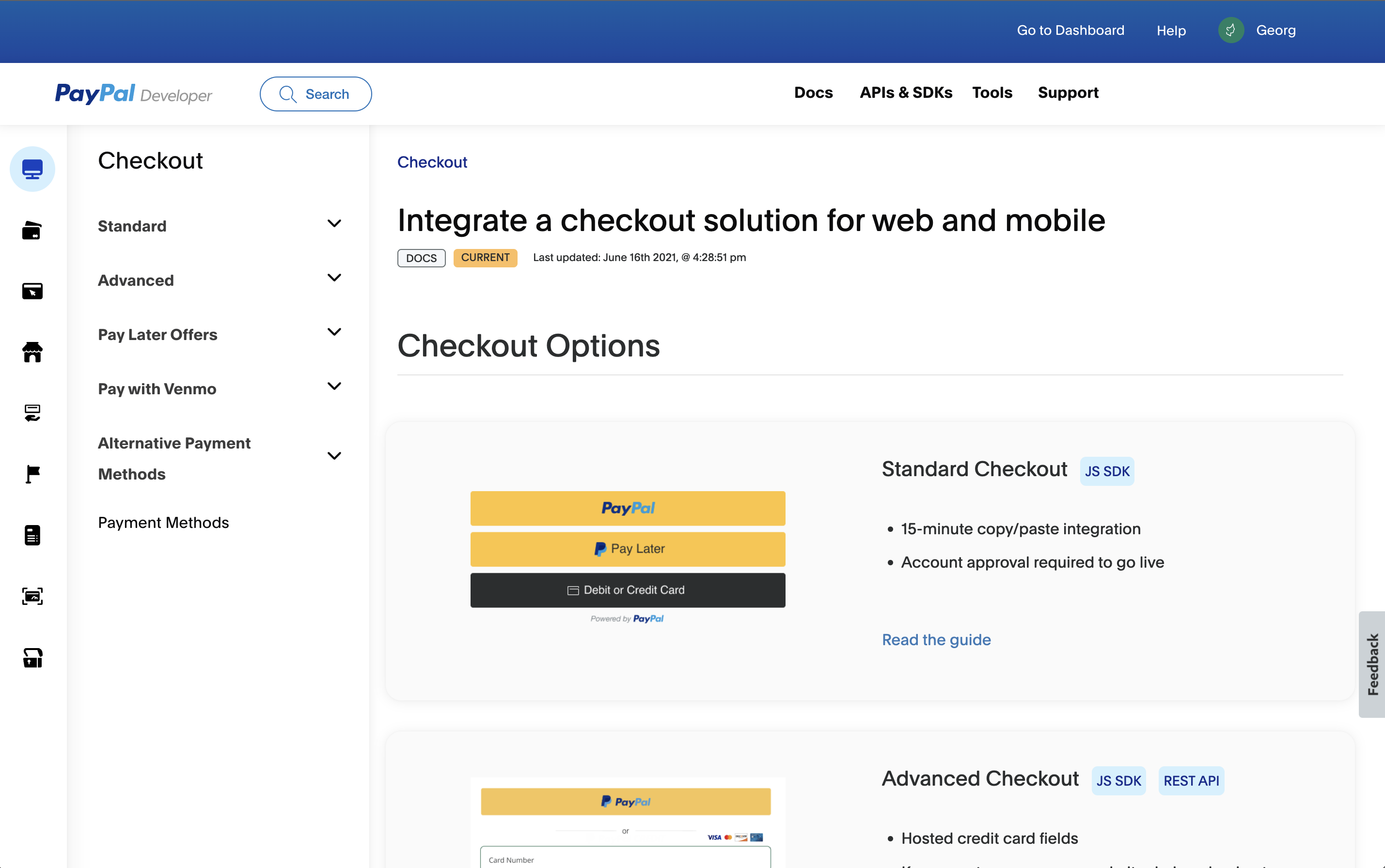
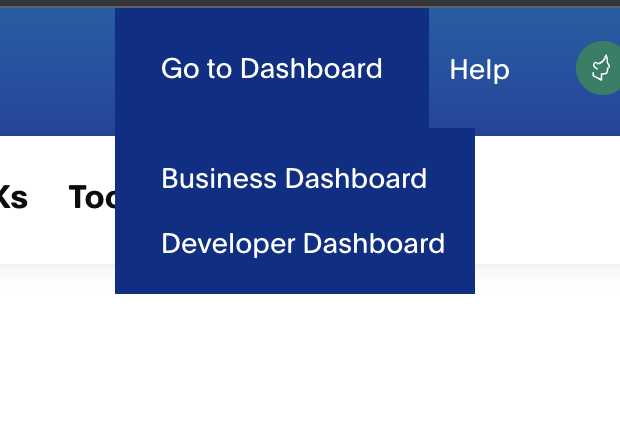
Hover your mouse over the Go to Dashboard menu item; a dropdown menu opens
-
-
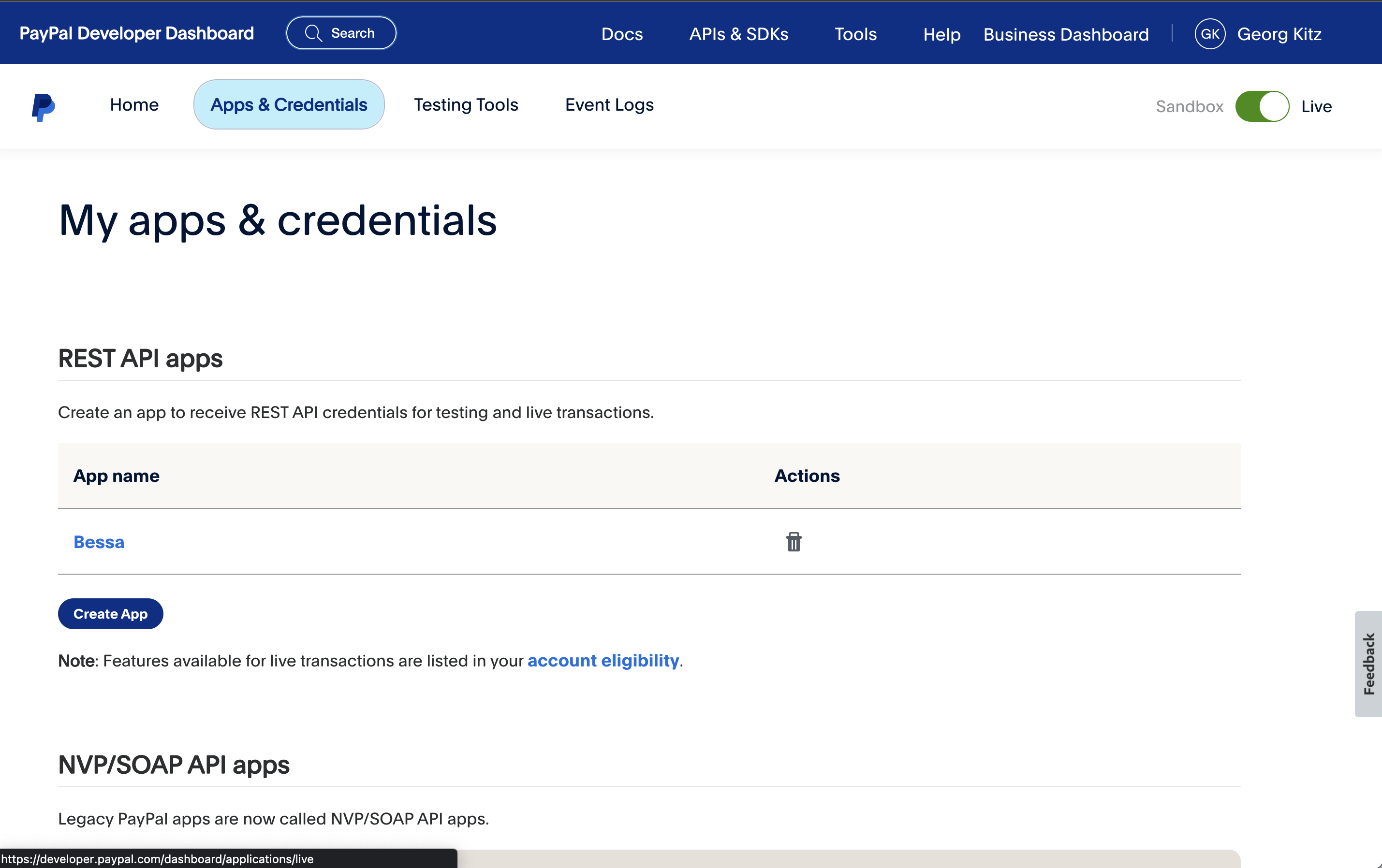
Click Developer Dashboard, which opens the developer dashboard
-
-
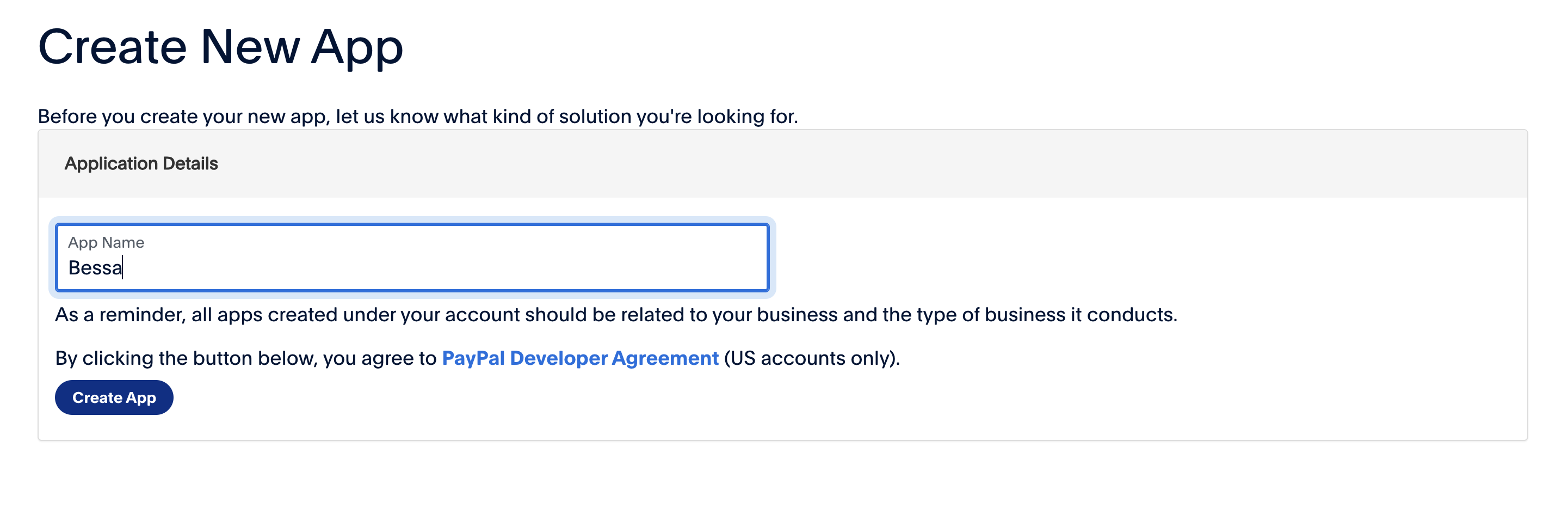
Then click Create App, give it the name "Bessa" and click Create App, as in the following image.
-
-
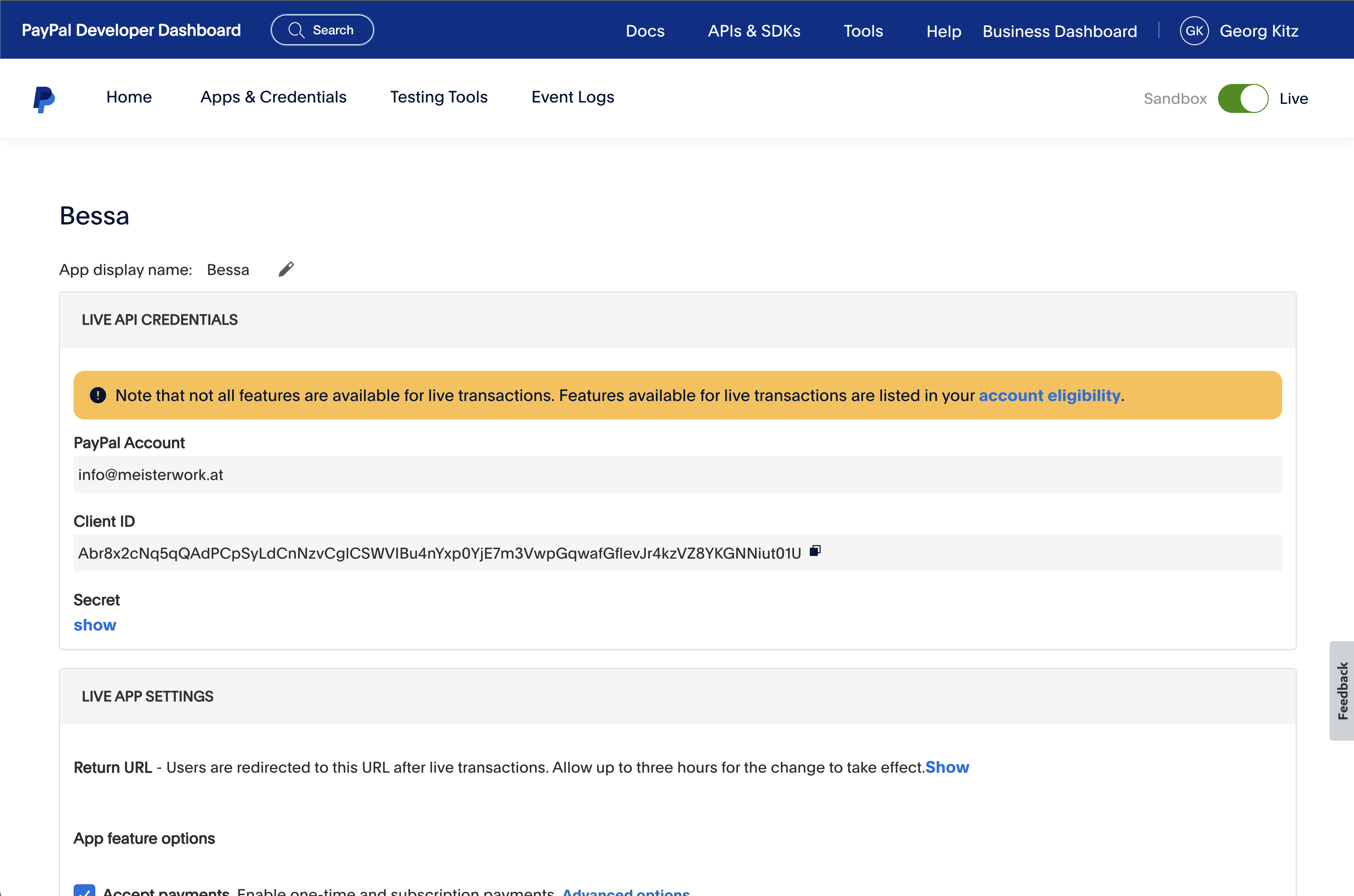
Select the newly created app and copy the Client ID & Secret and send them to the bessa team. The Secret is hidden behind the Show text.
Set Up PayPal for Apps
For app orders to also be processed via PayPal, a Return URL, Privacy and xxx must be entered.
Follow these steps:
-
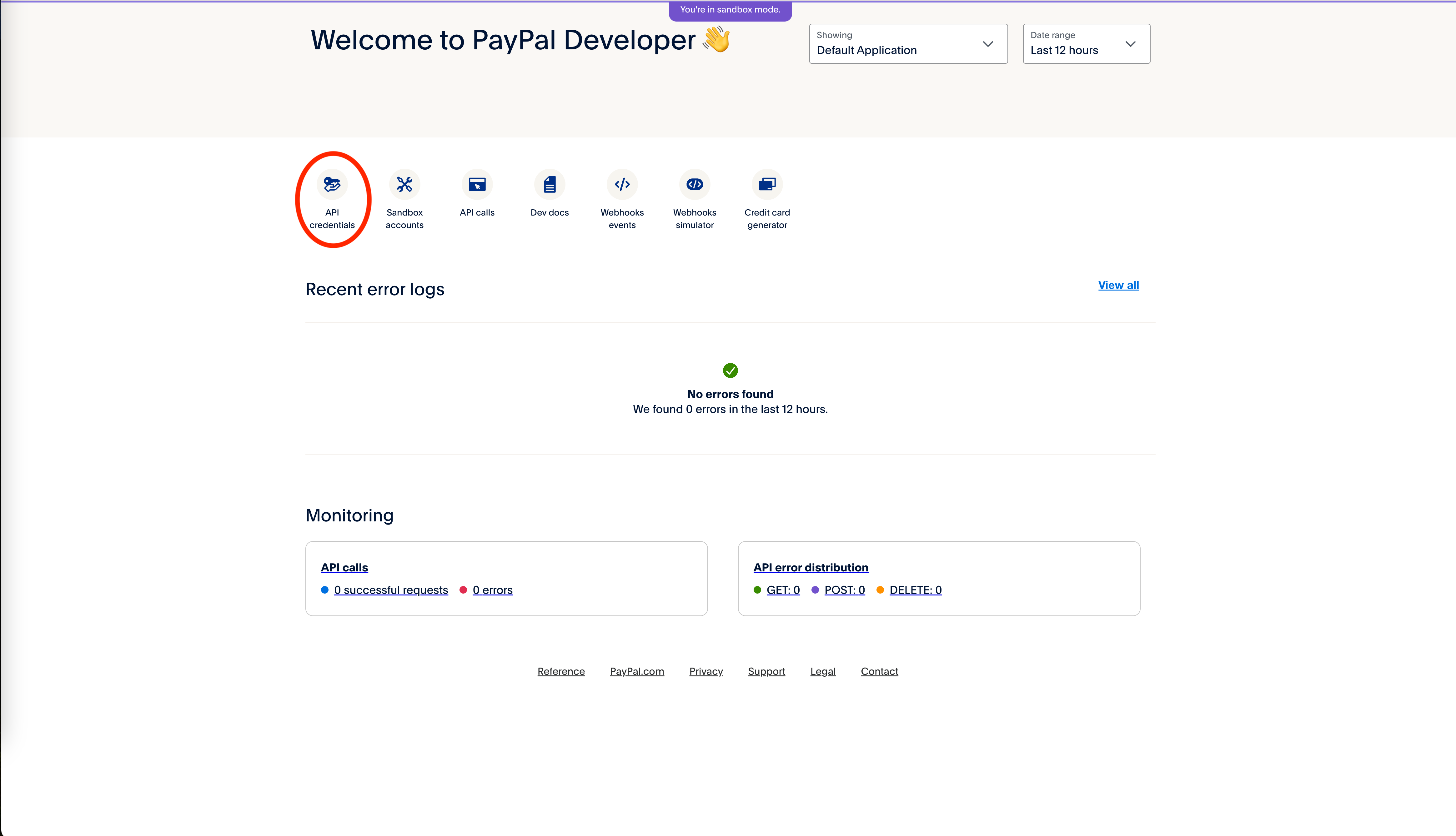
Click on API credentials
-
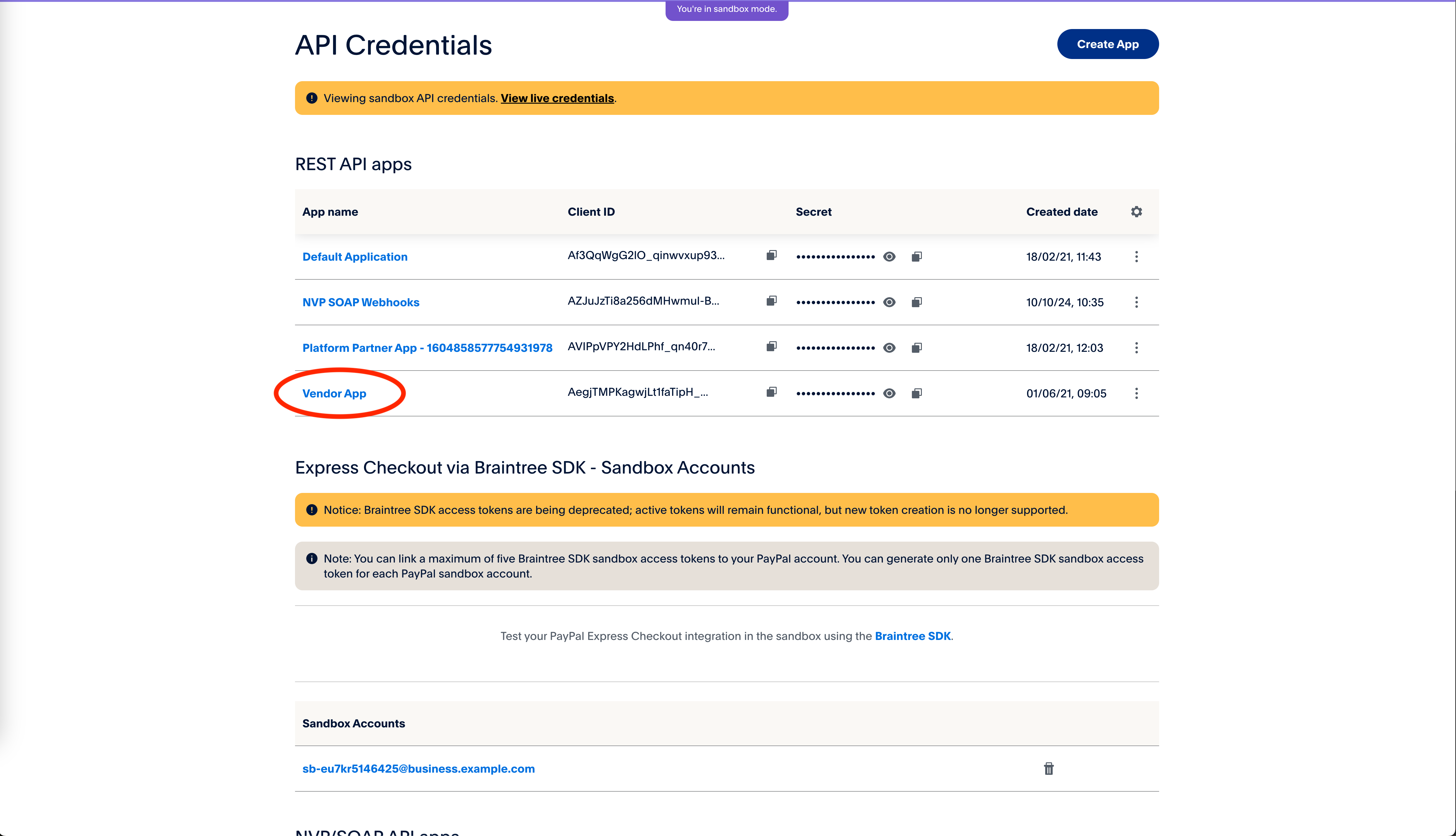
Select the previously created app, in our example Vendor App; for the customer, the app from the previous step should be named Bessa.
-
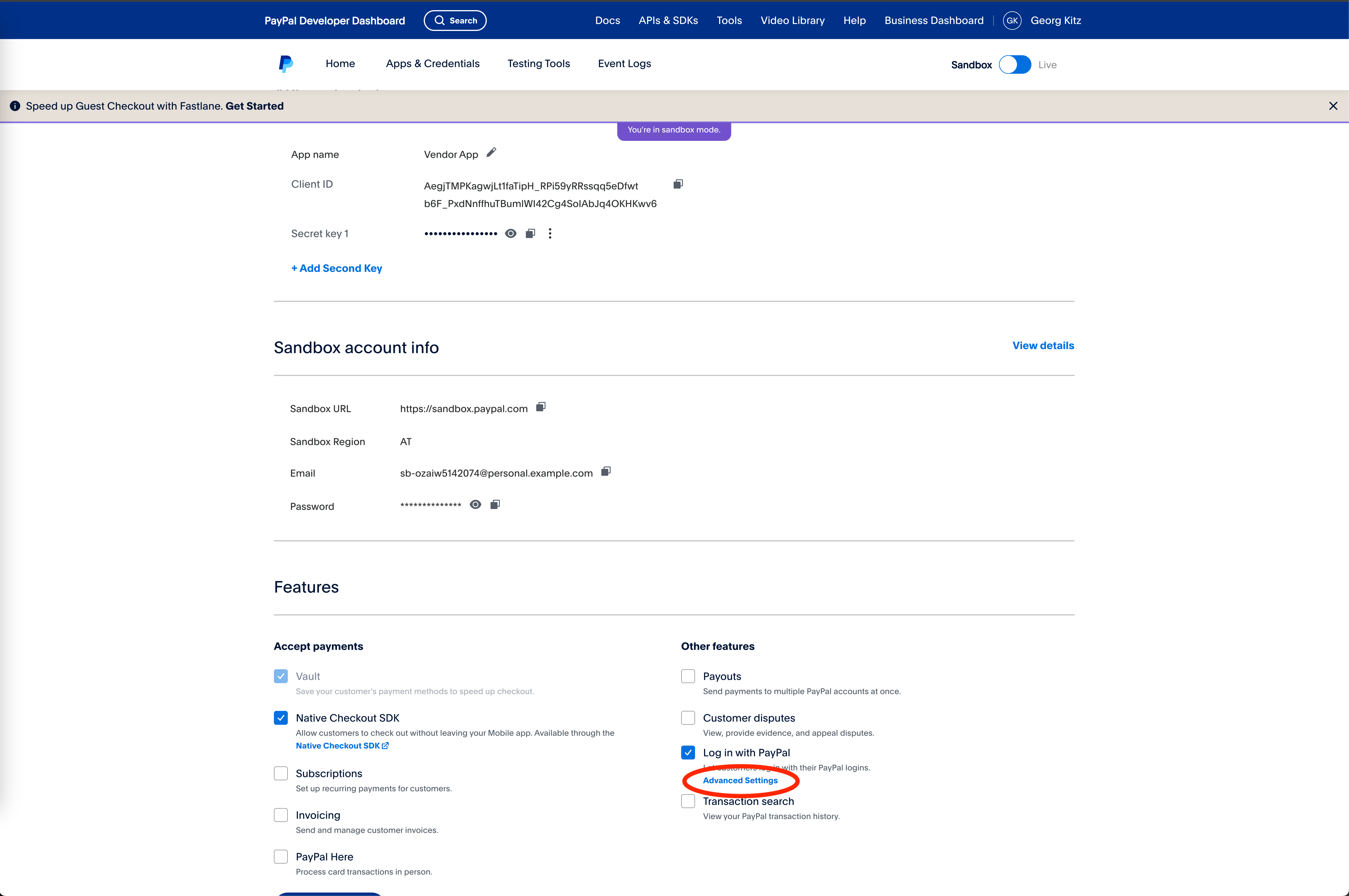
On the app page, make sure that Native Checkout SDK and Log in with PayPal are ticked.
-
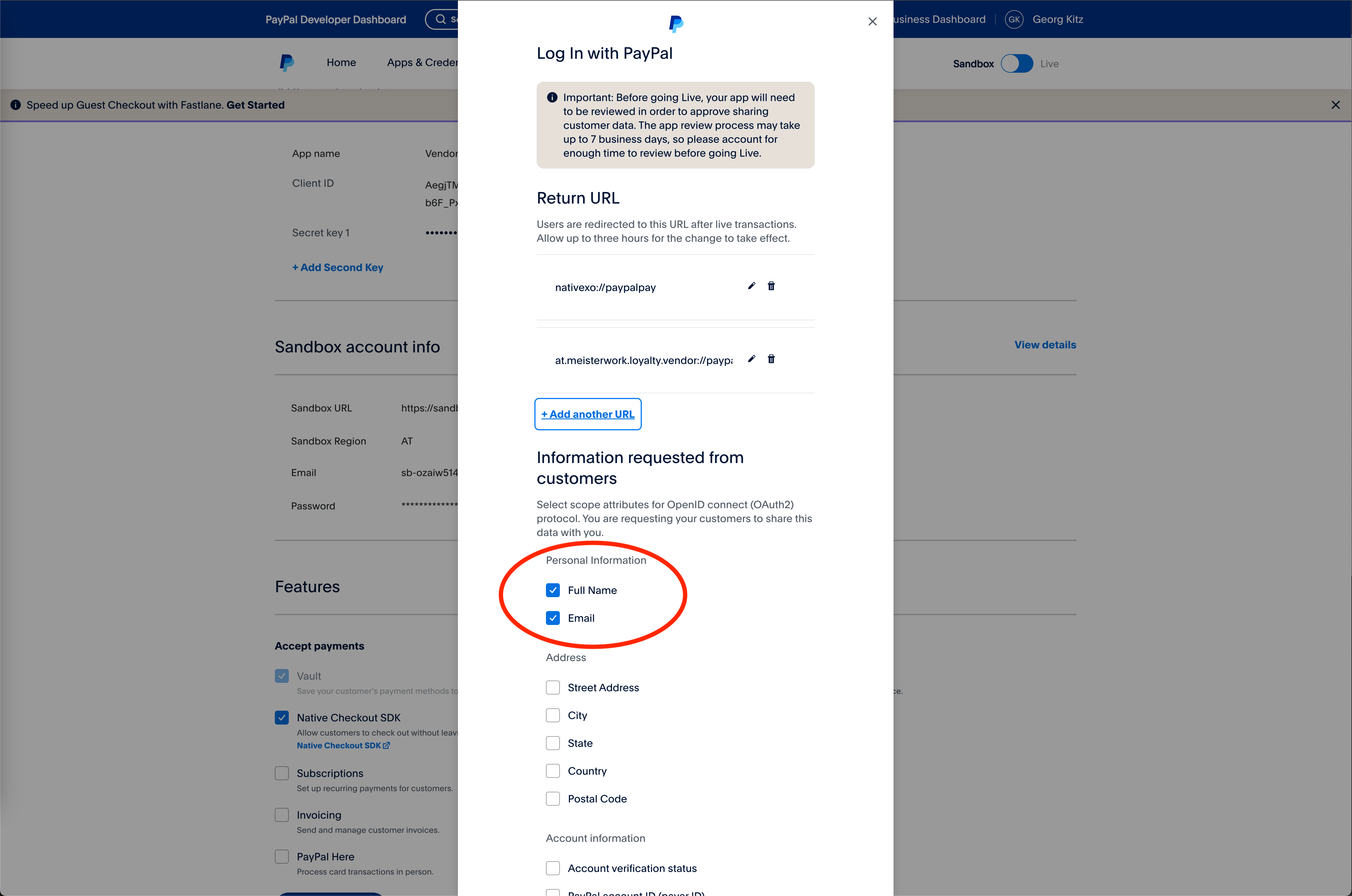
Under the Log in with PayPal entry there is a link with Advanced Settings; click it. 5. A dialog opens in which 3 entries are required: Return URL – for customers with a whitelabel app, enter the whitelabel app URL here, which is provided by the bessa team and is to be requested there. This URL always starts with at.meisterwork.loyalty. followed by the unique identifier of the app, in our example vendor, followed by the path to be opened ://paypalpay
This results in a complete URL like this: at.meisterwork.loyalty.vendor://paypalpay
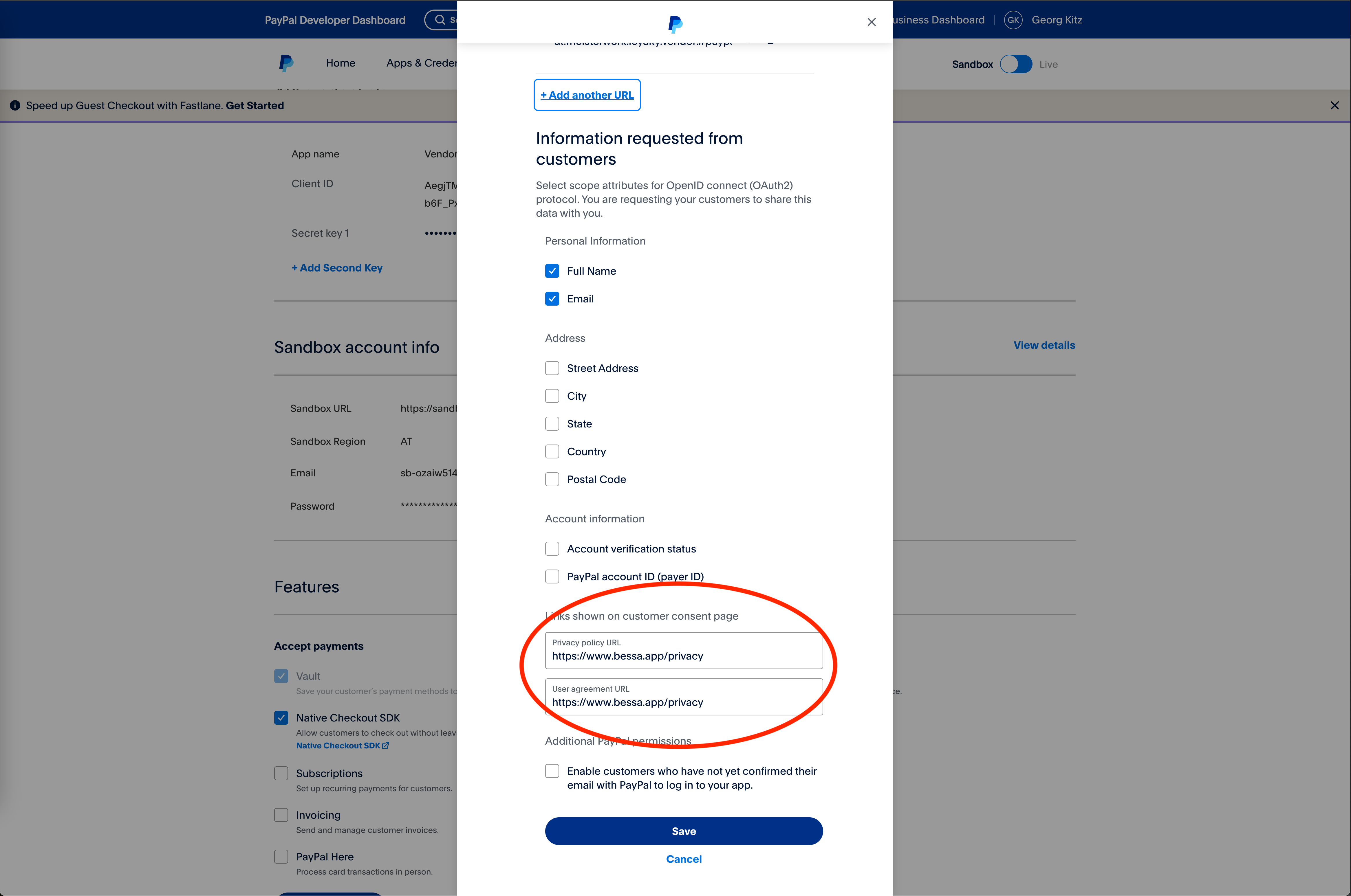
Scroll further down in the dialog and, for both Privacy URL and User Agreement, enter https://bessa.app/datenschutz
-
PayPal is now set up for the app and can be tested.