1. Location presence
The voucher web shop shows customers the name, description and image of your venue at various points. You maintain these details in bessa Manager under Location presence:
-
Select the location you want to edit at the top left.
-
Open Location presence → Details and enter Location name and Description. Click Save.
-
Open Location presence → App background and upload the image of your venue (recommended 2250 × 1920 pixels). Click Save.
The App background tab holds a background image, not a logo. The logo for voucher invoices is uploaded under Location presence → Invoice or under Company data for invoices. All tabs are described in Location presence.
2. Voucher preview
The web shop generates a schematic preview of the voucher for the customer. This preview requires an image.
Navigate to Voucher in the side menu of Manager and select the venue you wish to edit. Upload the preview image and click Save voucher settings.
3. Web shop design
The web shop where customers can purchase digital vouchers comes with a default design. If this design does not meet your requirements, you can open the designer via the Web shop design menu item in the side menu and customise the shop to your preferences.
4. Voucher design
To ensure your customers receive a professional and visually appealing voucher, we require a voucher template in PDF format (A4). This template will be stored in your account and serves as the basis for automatic voucher generation.
Technical specifications (A4 format)
|
Dimension |
Value |
|---|---|
|
Width |
595 pt |
|
Height |
842 pt |
Design areas
We offer two design variants — choose the one that best suits your branding:
Variant 1: Classic layout (recommended for elegant designs)
|
Area |
Height |
Notes |
|---|---|---|
|
Top |
298 pt |
Free design area (e.g. logo, slogan) |
|
Middle |
434 pt |
Automatically populated: voucher amount, customer name, QR code |
|
Bottom |
110 pt |
Free design area (e.g. terms & conditions, contact information) |
Note: the middle area may be designed, but will be overwritten with the voucher data. Use subtle backgrounds or borders that do not obscure the text.
Variant 2: Compact layout (ideal for modern, space-efficient designs)
|
Area |
Height |
Notes |
|---|---|---|
|
Top |
422 pt |
Free design area |
|
Middle |
370 pt |
Automatically populated: voucher amount, name, QR code (compressed layout) |
|
Bottom |
50 pt |
Free design area (e.g. terms & conditions, contact information) |
Advantage: more space in the bottom area — ideal for longer texts, social media links, or partner logos.
Examples
-
Green zones = your free design areas
-
Sample PDFs can be found in the appendix or at: Classic example | Compact example
PDF template — free design zones Below is an example showing the green zones designated for the venue's custom content.

Classic example
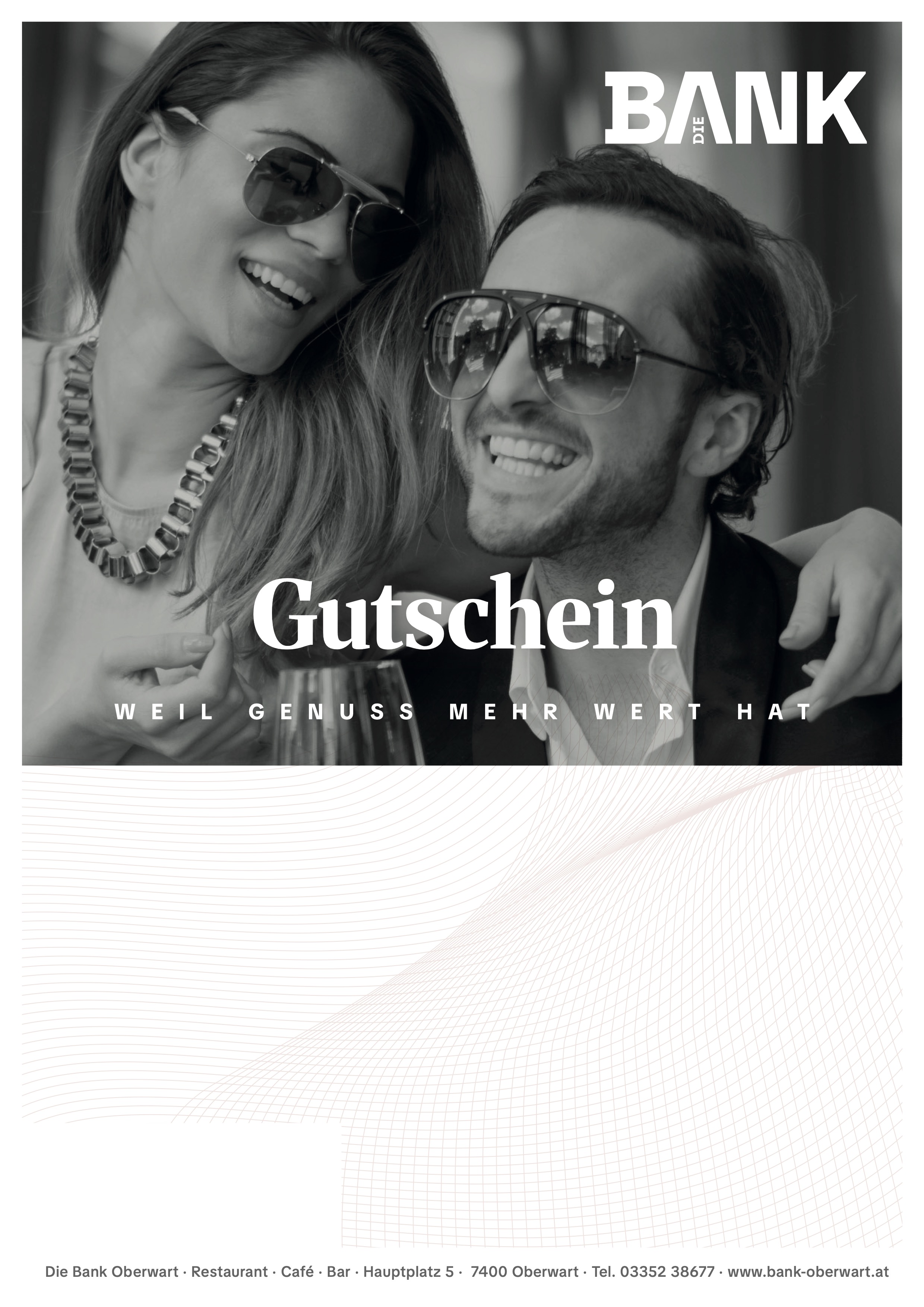
Below is a finished template. The white area will be printed by us with the voucher data.
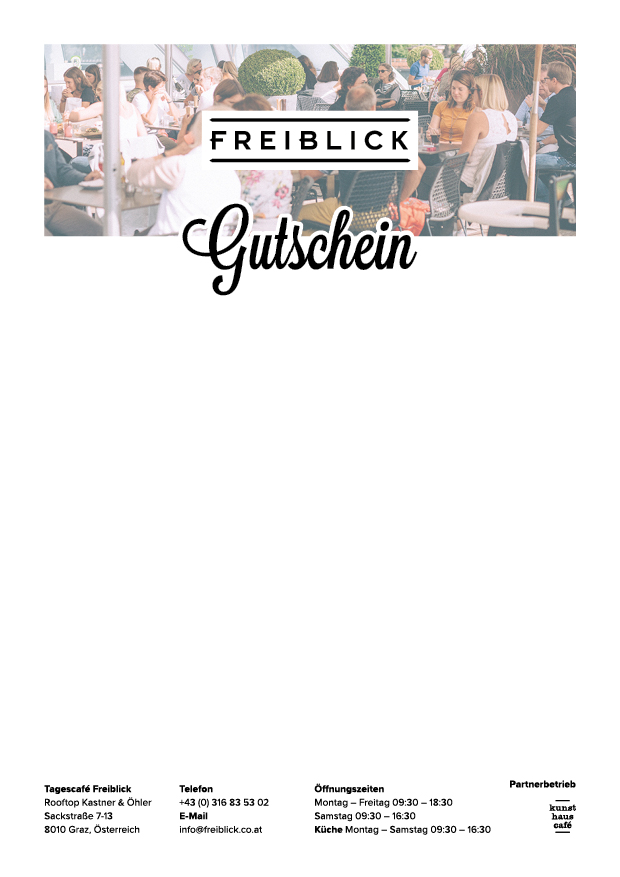
Finished design — voucher example
This example shows a completed voucher. The voucher language can be adjusted according to the customer's preference.
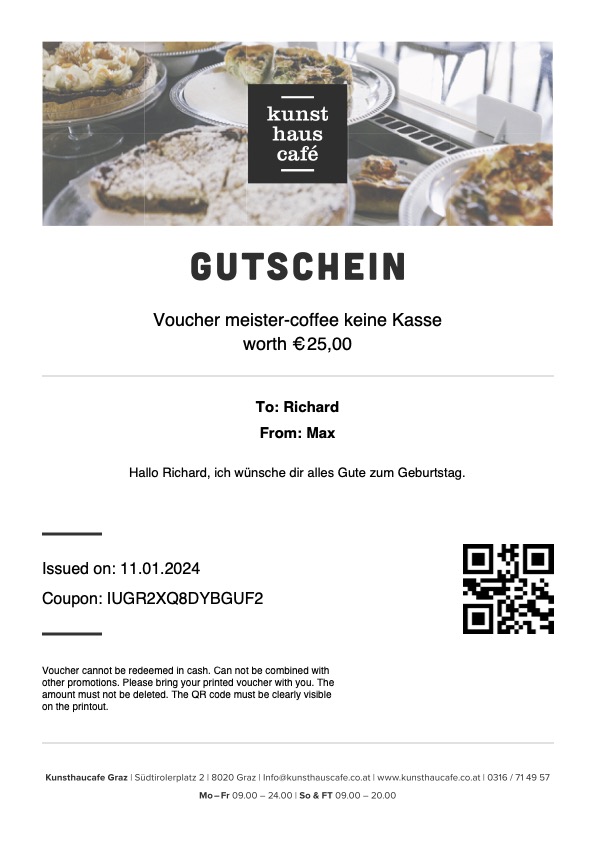
Compact example
Below is a finished template. The smaller white area will be printed by us with the voucher data.