
Overview
Sales Points (also called cash registers or terminals) are virtual licenses for point-of-sale locations in bessa Kassa. They can be tied to a specific venue or operated as mobile sales points independent of location. Each sales point is always assigned to a company.
Through the Sales Point Management in bessa Kassa Manager, you can view, configure, and manage your sales points.
Sales Point Types
Venue-Based Sales Points
Sales points assigned to a specific venue and operated at that location.
Typical Use Cases:
-
Restaurants and cafés
-
Retail stores
-
Branches with fixed locations
Mobile Sales Points
Location-independent sales points that can be used flexibly at various locations.
Typical Use Cases:
-
Taxis and mobile service providers (massage therapists, physiotherapists)
-
Food trucks
-
Trade shows and events
-
Mobile sales
Main Sales Points and Sub-Terminals
Main Sales Points
A main sales point is the central cash register that operates independently and can optionally be connected to sub-terminals.
Sub-Terminals
Sub-terminals are connected to their parent main sales point via the local network and share certain functions with it:
Shared Settings (shared with the main sales point):
-
Cash closure
-
Number range
-
Cash book
-
Fiscalization/signature
Individual Settings (can be configured per sub-terminal):
-
Display and POS interface
-
Card terminal
-
Users
-
...and more
Important: Sub-terminals can only be operated when the associated main sales point is powered on and reachable via the local network.
Sales Point Overview
In the sales point overview, you can see all sales points of your company with their key information.
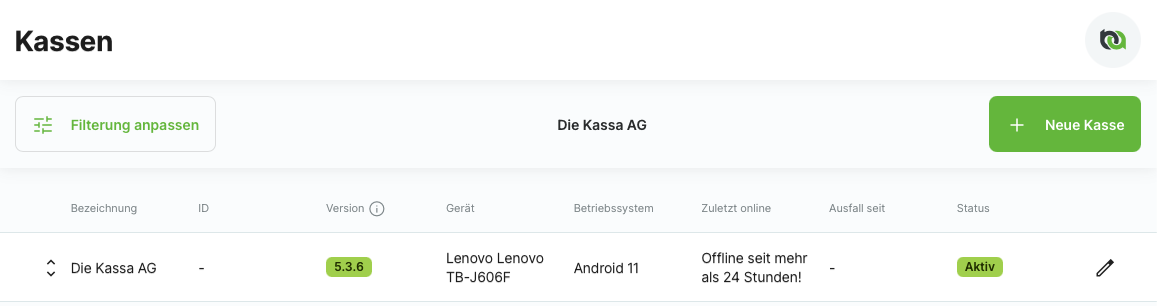
Overview Columns
|
Column |
Description |
|---|---|
|
Name |
Name of the sales point |
|
ID |
Fiscal ID of the sales point |
|
Version |
Installed app version with status indicator (see below) |
|
Device |
Hardware device the sales point is connected to |
|
Operating System |
Operating system of the connected device |
|
Last Online |
Time of last connection to the server |
|
Outage since |
Outage of the fiscal signing service |
|
Status |
License status of the sales point (see below) |
Sales Points with Sub-Terminals
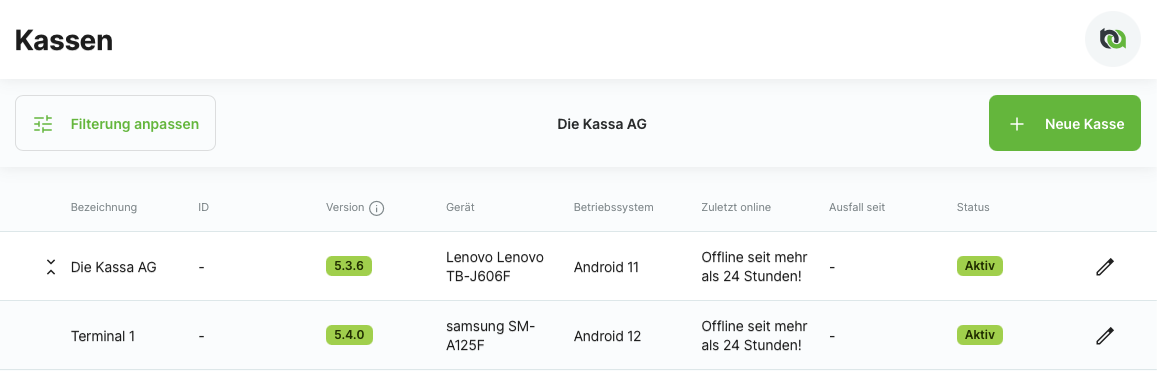
Main sales points with sub-terminals can be expanded (▼). The sub-terminals are then displayed as separate rows below the main sales point.
License Status
The status of a sales point indicates whether the license is active and usable. The status display is color-coded:
|
Color |
Status |
Meaning |
|---|---|---|
|
🟢 Green |
Active |
License is permanently active |
|
🟢 Green |
Active until [Date] |
Time-limited license (e.g., rental sales point) |
|
🔴 Red |
Inactive |
License is deactivated and cannot be used |
Note: Time-limited licenses (rental sales points) can be extended through your dealer or bessa Support.
Version Display
The "Version" column shows the status of the installed bessa Kassa app:
|
Color |
Meaning |
Action Required |
|---|---|---|
|
🟢 Green |
Latest version installed |
No action needed |
|
🟠 Orange |
Not the latest version, but still OK |
Update recommended |
|
🔴 Red |
Version too old |
Update urgently required |
A version is considered "too old" (red) when:
-
A newer major version is available, OR
-
An update has been marked as mandatory
View Version Details
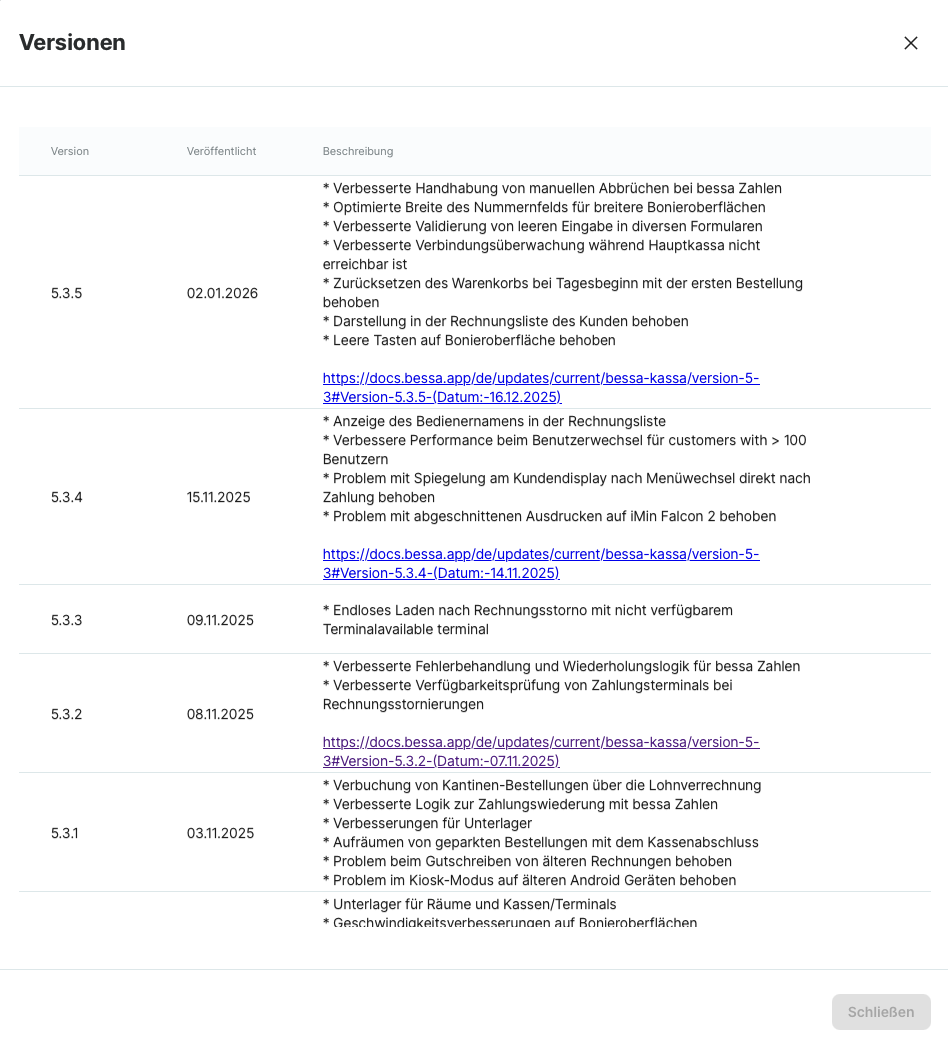
Click the ⓘ Info icon in the "Version" column to open the version list with detailed descriptions.
Filters and Search
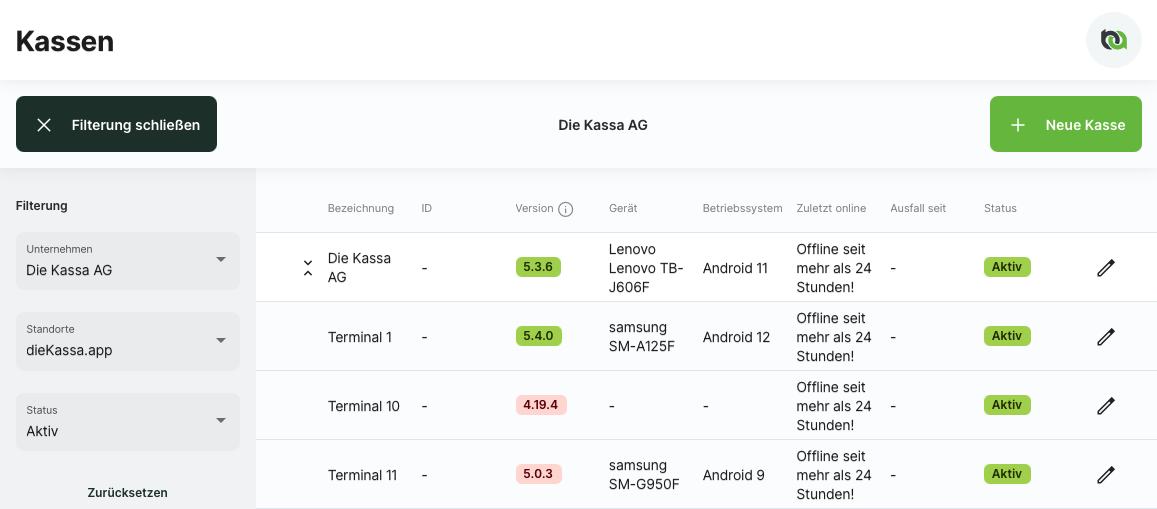
The sales point overview offers various filtering options:
Available Filters
-
Company: Filter sales points by company
-
Venue: Show only sales points of a specific venue
-
Status: Filter by license status (Active, Active until [Date], Inactive)
Hardware Connection
How does hardware binding work?
Sales points are virtual licenses that are bound to a hardware device upon first login:
-
User logs in with the sales point on a device
-
The sales point is automatically connected to this device
-
As long as this connection exists, the sales point CANNOT log in on another device
Changing Hardware
To use a sales point on a new device:
-
On the old device: Log out
-
On the new device: Log in with the same sales point
Tip: For a defective or stolen device, you can force-disconnect the hardware connection via Sales Point Control.
Offline Operation
Main Sales Points
Main sales points can work without an internet connection and store all data locally. Once an internet connection is available again, the data is automatically synchronized with the cloud.
Important: Note country-specific fiscalization restrictions during offline operation. Regular internet connection is mandatory for data backup.
The offline status is displayed in the sales point's status menu.
Sub-Terminals
Sub-terminals require at least a connection to the local network to communicate with the main sales point. They CANNOT be operated without a connection to the main sales point.
Edit Sales Point
To edit a sales point, click on:
-
The pencil icon (✏️) in the sales point's row, OR
-
Directly on the sales point's row
The detail view opens with several configuration tabs:
Available Tabs (Main Sales Points)
-
Sales Point - General settings
-
Display - UI settings and price levels
-
Cash Closure - Day start, end, and automatic closure
-
Tax - Fiscalization and tax office registration
-
Card Terminal - Card payment configuration
-
Cash Book - Cash book activation and settings
-
Users - User assignment
-
Control - Hardware management and remote control
-
bessa - Online orders and customer loyalty
Available Tabs (Sub-Terminals)
Sub-terminals have a reduced number of tabs since some settings are shared with the main sales point:
✅ Available:
-
Sales Point (General)
-
Display
-
Card Terminal
-
Users
-
Control
-
bessa (only customer loyalty)
❌ Not available (shared with main sales point):
-
Cash Closure
-
Cash Book
-
Tax
Detailed information about individual tabs can be found on the respective sub-pages (see "Related Topics" below).
Create New Sales Point
New sales points can only be created by bessa Support or your dealer, as they are tied to licenses.
Contact: Please contact bessa Support or your designated dealer to create new sales points.
Common Problems & Solutions
Problem: Sales Point Not Selectable During Login
Cause: The sales point is still connected to another device.
Solution:
-
On the old device: Log out
-
OR: Force-disconnect hardware connection via Sales Point Control
Problem: Sales Point Not Available During Login
Possible Causes:
-
Login user is not assigned to the sales point
-
License has expired
Solution:
-
Check in the Users tab whether the user is assigned
-
Check the license status in the sales point overview
-
If license expired: Contact dealer/support
Problem: Sales Point Logged Out
Possible Causes:
-
License has expired
-
Hardware was disconnected (e.g., by another login)
Solution:
-
Check license status
-
With active license: Log in again
-
If problem persists: Install update
-
If problem persists: Contact dealer/bessa Support
Problem: Terminal can’t find Or Connect To Main Sales Point
Possible Causes:
-
Main sales point not connected
-
Main sales point switched off or offline
-
Main sales point has a different IP address than set up
-
Main sales point not reachable through network (e.g. wrong network configuration or different subnet)
Solution:
-
Check status of main sales point (switched on and connected)
-
Check network connection (connectivity and subnet)
-
Restart devices
-
If problem persists: Install update
-
If problem persists: Contact dealer/bessa Support
Problem: Changing Hardware
Solution:
-
On old device: Log out
-
On new device: Log in with the same sales point
Tip: The sales point will be automatically bound to the new device.
Problem: Hardware Defective or Stolen
When the old device is no longer available, the hardware connection cannot be disconnected by logging out.
Solution: Use the forced hardware disconnection in the Control tab.
General Problems
For general problems with the sales point:
-
Restart devices
-
Install the latest version of the bessa Kassa app
-
Check version display in the sales point overview (see above)
-
If problem persists: Contact dealer/bessa Support
Related Topics
-
Venue Management - Create and manage venues
-
User Management - Create users and assign permissions
-
Displays - Configure sales point order screens
-
Fiscalization - RKSV requirements and tax office registration